After completing this lesson, you’ll be able to:
In this lesson, you will:
After completing this lesson, you’ll be able to:
In this lesson, you will:
The easiest way to run a workspace on FME Flow is through the Run Workspace page. FME Flow calls each submission to run a workspace a "job."
You can also browse for workspaces from the Workspaces page. Simply select the repository and click on a workspace name to open it to Run Workspace.
On the Run Workspace page, you choose the repository, workspace, and service to run as a job.
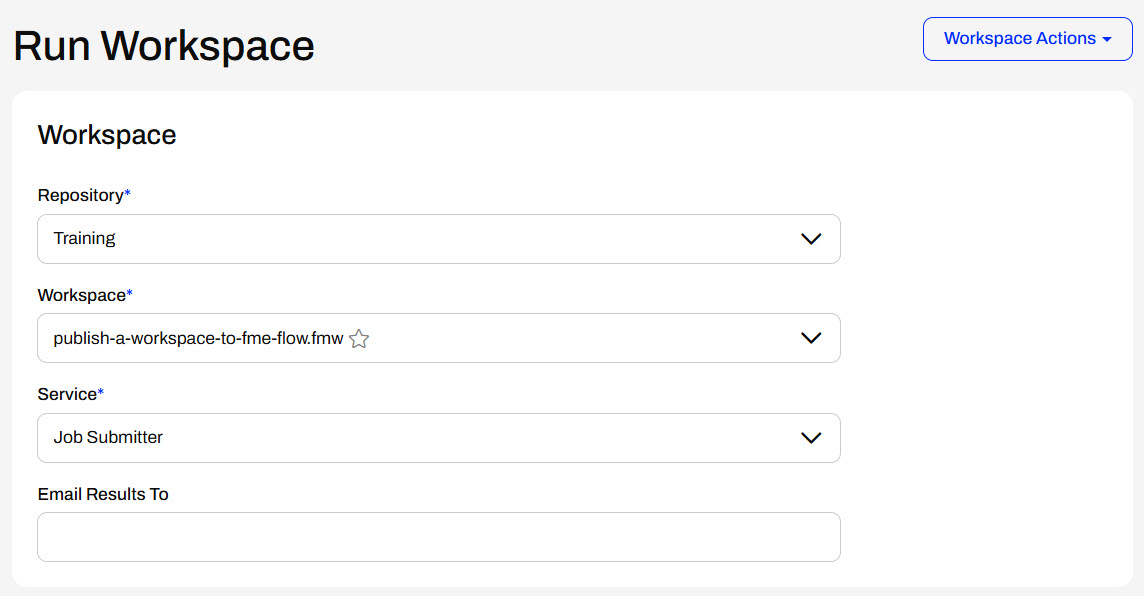
The Run Workspace page has an Email Results To parameter. To successfully send an email containing the job results, you must configure each of the email subscriptions under Notifications > Subscriptions. It requires you to input your SMTP account details following these instructions for each subscription.
If your workspace contains User Parameters, the next section on the Run Workspace page allows you to configure the parameter values the workspace will run with. The last section is the Advanced options, which is not required for this course but may be helpful for your future FME Flow workflows. Expand the sections below to learn more.
When you select a workspace containing User Parameters, you set those parameters before running the translation.
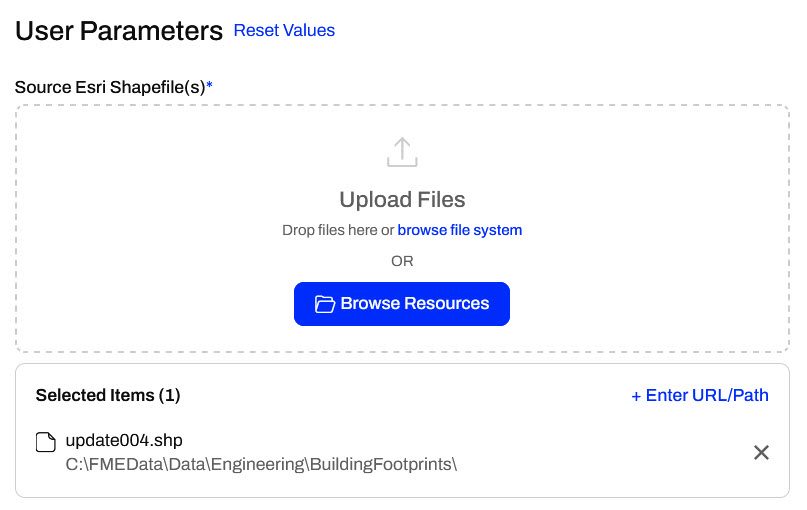
You create User Parameters in FME Workbench, and you have many options for the type of parameters. Parameters can be a source file to feed into the workspace, text values to configure how the workspace runs, an input location to query data from, and more. We will cover parameters in more detail later in the Build Self-Serve Workflows with Parameters course. Creating and Modifying User Parameters and Create Flexible Workspaces with Parameters provide more information for working with parameters in FME Workbench.
The Run Workspace page in FME Flow also has an additional section under Advanced. Advanced parameters are FME Flow-specific parameters that provide advanced control over how the workspace runs. You do not need to know this content for this lesson or course; however, it may be helpful to understand in your future FME Flow workflows.
Job Queue
Job Queues manage how the core sends FME Flow jobs to specific Engines and controls the priority of job requests. You may select a predefined Queue for this job when it runs. Job Queues can be created and edited from the Engine Management page.
Queued Job Expiry Time
The expiry time sets the maximum time a job can wait in the queue before being assigned to an engine and run. If a job waits longer than this time in the queue, it will be canceled and not run. This option is helpful for time-sensitive jobs you do not want to run after the specified time in the queue has passed.
Running Job Expiry Time
This expiry time sets the maximum time a job can be in the Running state. When the running job exceeds this time, it will automatically cancel.
Log Debug
This option adds additional logging to the job log for debugging. You should use this cautiously, as it will likely affect job performance and increase the job log's file size.
Other Ways to Run this Workspace
You can follow the links to create an FME Flow Workspace App or a webhook to run your workspace.
Topics to Notify
This section lists the FME Flow Topics alerted when the job succeeds or fails.
User Parameters
This section lists the User Parameters available for the workspace and provides configuration details for each.
Once you've configured all parameters, click Run to submit the job request.
Once you click Run, the FME Flow Core sends the job request to the FME Engines. If an engine is available, the job will run immediately. Otherwise, it will queue until an engine finishes another task and becomes free. A process dialog will appear, indicating the job's current state.

Once the translation finishes, the engine communicates with the core, and the dialog indicates whether the job completed successfully or failed.


In the previous exercise, you published Sven's workspace to FME Flow. Now, he must run it on FME Flow to ensure it functions as expected. Once he knows it functions correctly on FME Flow, he can let his colleagues know the workspace is on FME Flow, and they can run it.
For this exercise, follow the steps below to run Sven's workspace on FME Flow.
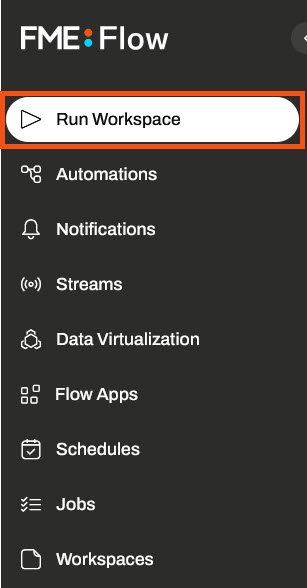
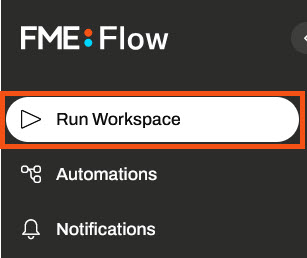
Navigate to FME Flow and click Run Workspace on the side menu.
Select the Training repository and the publish-a-workspace-to-fme-flow.fmw workspace. Job Submitter is the only service this workspace uses, so leave that value as the default.
Sven's workspace has no user parameters, so that section does not appear. You do not need to alter any settings under the Advanced section.
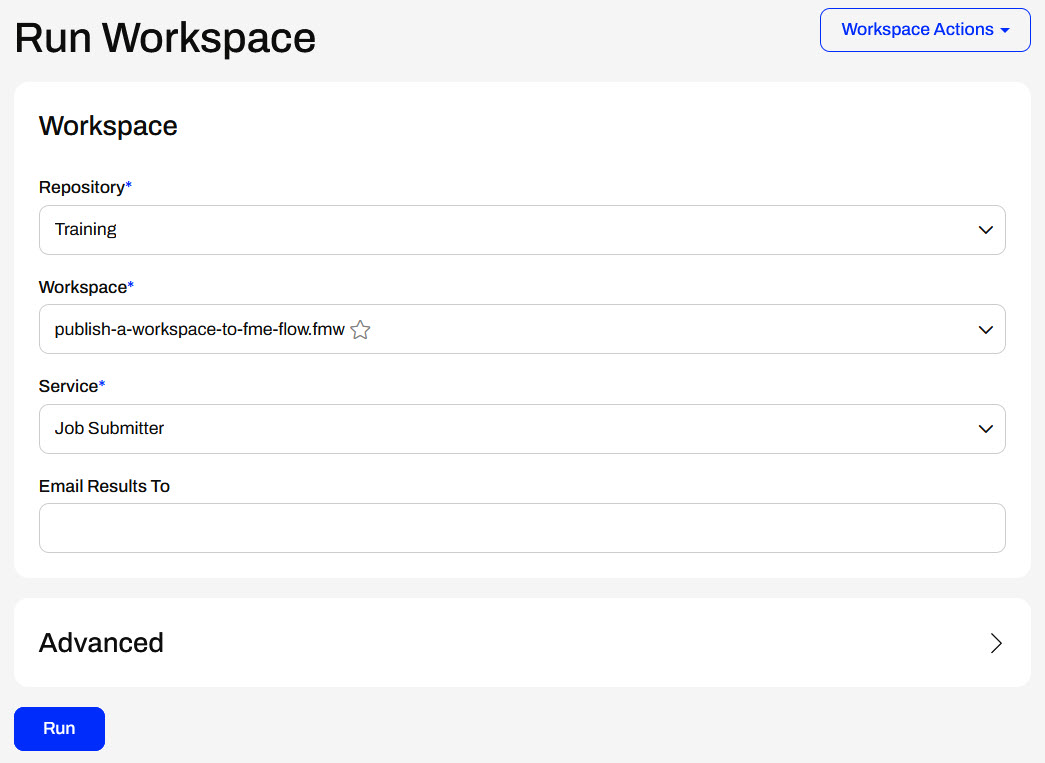
Click the Run button to submit the job. FME Flow runs the workspace and displays a completed message, the Job ID, and the number of Features Written.
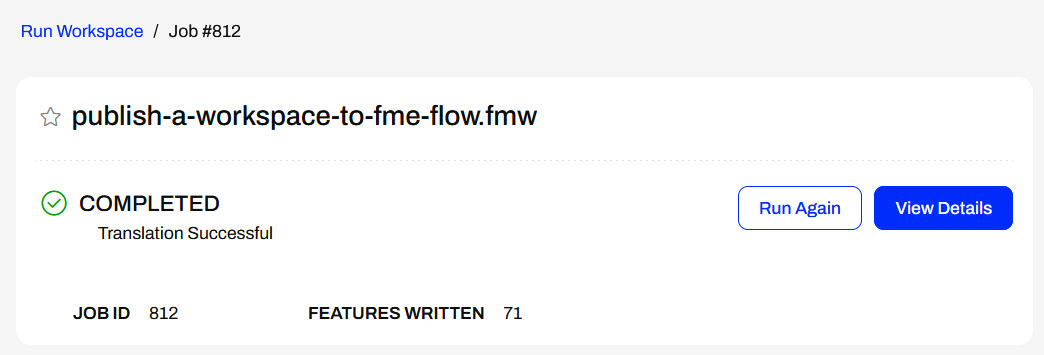
You've now run Sven's workspace on FME Flow. Now, Sven knows the workspace is functioning correctly on FME Flow, and his colleagues can run it as well. They may all use the same workspace, eliminating the need to manually share the workspace file among multiple people.
The easiest way to run a workspace on FME Flow is through the Run Workspace page. FME Flow calls each submission to run a workspace a "job."
You can also browse for workspaces from the Workspaces page. Simply select the repository and click on a workspace name to open it to Run Workspace.
On the Run Workspace page, you choose the repository, workspace, and service to run as a job.
The Run Workspace page has an Email Results To parameter. To successfully send an email containing the job results, you must configure each of the email subscriptions under Notifications > Subscriptions. It requires you to input your SMTP account details following these instructions for each subscription.
If your workspace contains User Parameters, the next section on the Run Workspace page allows you to configure the parameter values the workspace will run with. The last section is the Advanced options, which is not required for this course but may be helpful for your future FME Flow workflows. Expand the sections below to learn more.
When you select a workspace containing User Parameters, you set those parameters before running the translation.
You create User Parameters in FME Workbench, and you have many options for the type of parameters. Parameters can be a source file to feed into the workspace, text values to configure how the workspace runs, an input location to query data from, and more. We will cover parameters in more detail later in the Build Self-Serve Workflows with Parameters course. Creating and Modifying User Parameters and Create Flexible Workspaces with Parameters provide more information for working with parameters in FME Workbench.
The Run Workspace page in FME Flow also has an additional section under Advanced. Advanced parameters are FME Flow-specific parameters that provide advanced control over how the workspace runs. You do not need to know this content for this lesson or course; however, it may be helpful to understand in your future FME Flow workflows.
Job Queue
Job Queues manage how the core sends FME Flow jobs to specific Engines and controls the priority of job requests. You may select a predefined Queue for this job when it runs. Job Queues can be created and edited from the Engine Management page.
Queued Job Expiry Time
The expiry time sets the maximum time a job can wait in the queue before being assigned to an engine and run. If a job waits longer than this time in the queue, it will be canceled and not run. This option is helpful for time-sensitive jobs you do not want to run after the specified time in the queue has passed.
Running Job Expiry Time
This expiry time sets the maximum time a job can be in the Running state. When the running job exceeds this time, it will automatically cancel.
Log Debug
This option adds additional logging to the job log for debugging. You should use this cautiously, as it will likely affect job performance and increase the job log's file size.
Other Ways to Run this Workspace
You can follow the links to create an FME Flow Workspace App or a webhook to run your workspace.
Topics to Notify
This section lists the FME Flow Topics alerted when the job succeeds or fails.
User Parameters
This section lists the User Parameters available for the workspace and provides configuration details for each.
Once you've configured all parameters, click Run to submit the job request.
Once you click Run, the FME Flow Core sends the job request to the FME Engines. If an engine is available, the job will run immediately. Otherwise, it will queue until an engine finishes another task and becomes free. A process dialog will appear, indicating the job's current state.
Once the translation finishes, the engine communicates with the core, and the dialog indicates whether the job completed successfully or failed.
In the previous exercise, you published Sven's workspace to FME Flow. Now, he must run it on FME Flow to ensure it functions as expected. Once he knows it functions correctly on FME Flow, he can let his colleagues know the workspace is on FME Flow, and they can run it.
For this exercise, follow the steps below to run Sven's workspace on FME Flow.
Navigate to FME Flow and click Run Workspace on the side menu.
Select the Training repository and the publish-a-workspace-to-fme-flow.fmw workspace. Job Submitter is the only service this workspace uses, so leave that value as the default.
Sven's workspace has no user parameters, so that section does not appear. You do not need to alter any settings under the Advanced section.
Click the Run button to submit the job. FME Flow runs the workspace and displays a completed message, the Job ID, and the number of Features Written.
You've now run Sven's workspace on FME Flow. Now, Sven knows the workspace is functioning correctly on FME Flow, and his colleagues can run it as well. They may all use the same workspace, eliminating the need to manually share the workspace file among multiple people.
